
My NFC Attendance App
Attendance made easy
Built for teachers — with full support for the student persona too. My NFC Attendance turns roll call into a two-second tap or scan, with QR code scanning, NFC tag reading, and cloud synchronization built in.
Or use the web app in your browser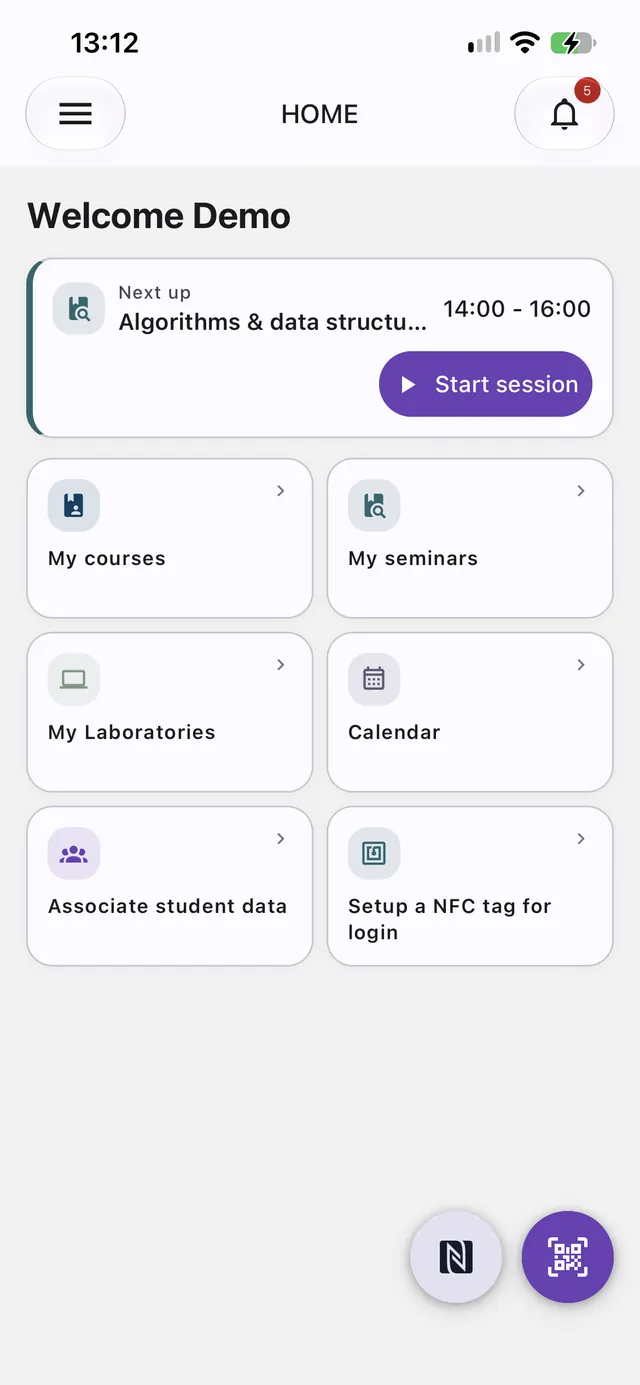
How it works
Log in
Sign in with your institutional email and password to land on a dashboard with quick access to your courses, seminars, and laboratories.
Start a session
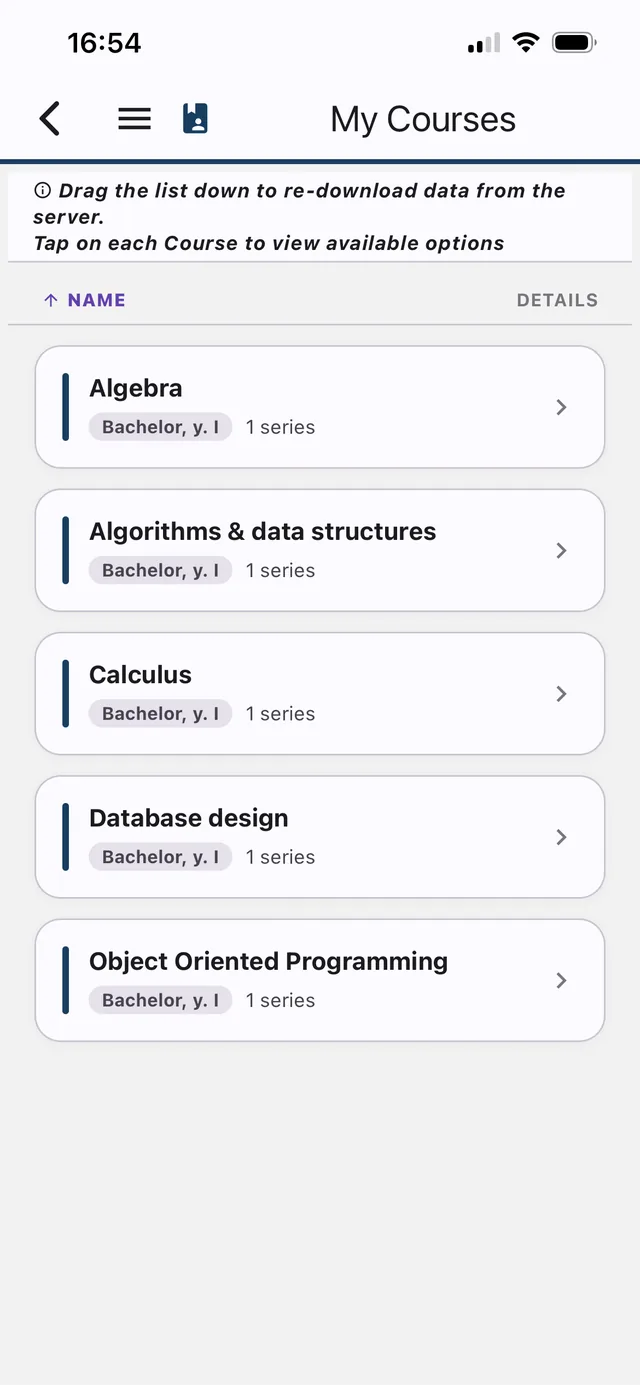
Pick a course, seminar, or laboratory and start a series or group session, or start today’s scheduled one in a single tap from the Home screen. The full roster loads instantly.
Mark attendance
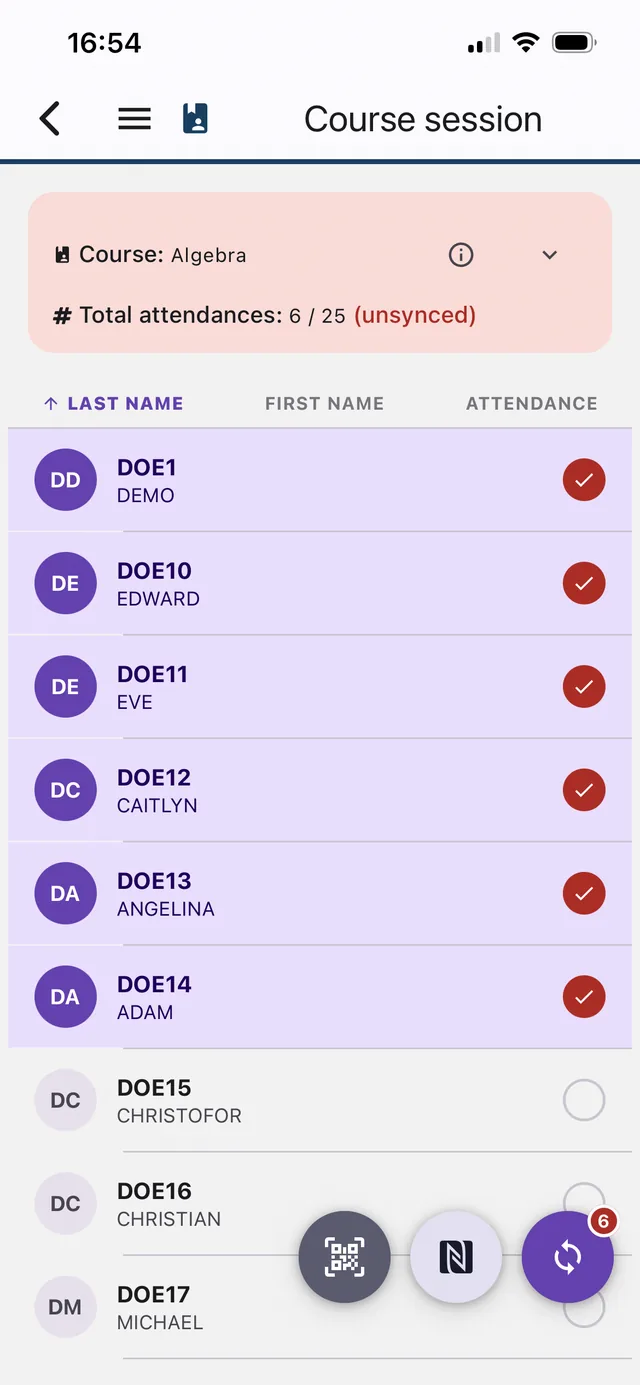
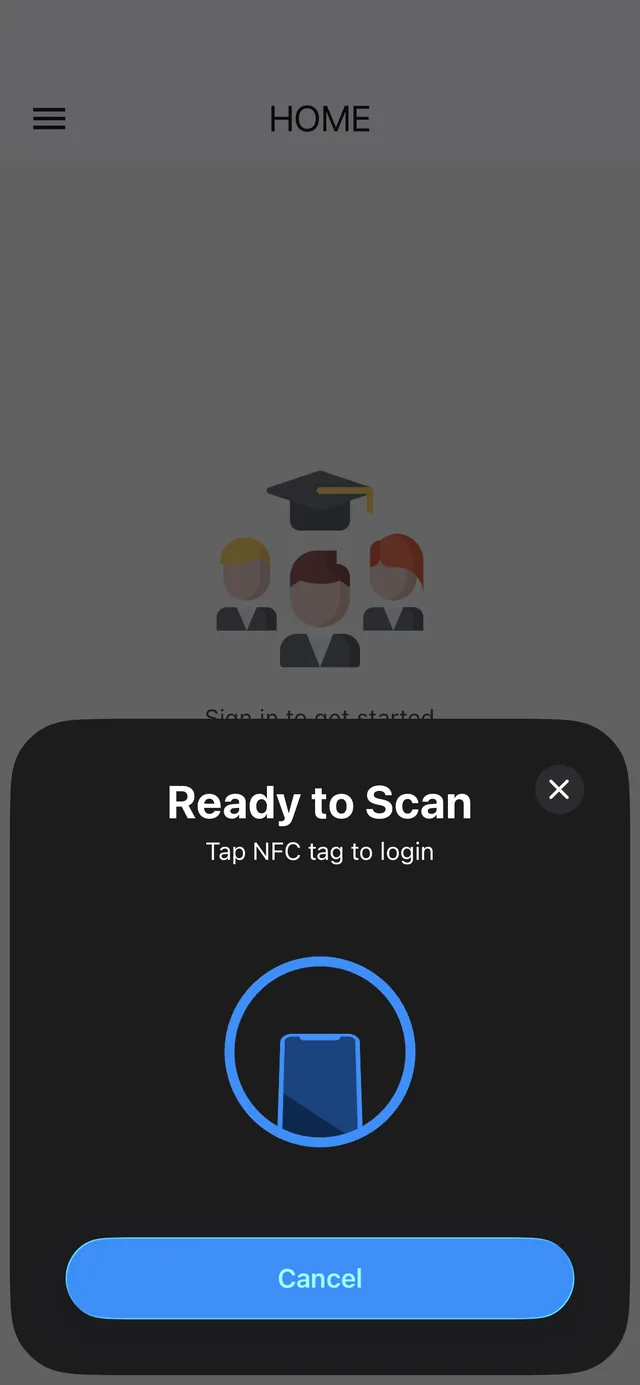
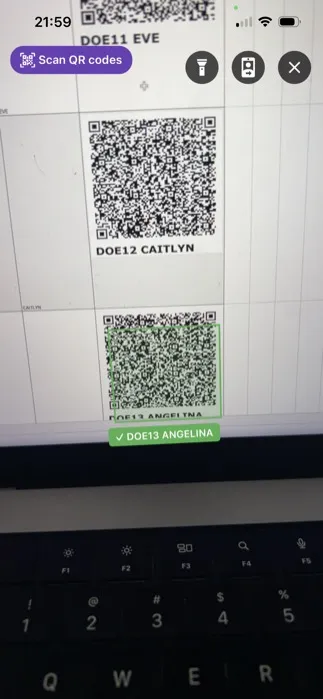
Tap an NFC tag, scan a QR code, or bulk-scan several students at once — or just tap names manually for smaller classes.
Sync & review
Hit Sync to upload securely to the cloud, then check per-student history or export a downloadable attendance catalog.
Three ways to mark attendance
NFC tags, QR codes, or manual taps — bulk-scan a whole class in seconds, or fall back to manual entry when technology isn’t available.
Unique ID per student
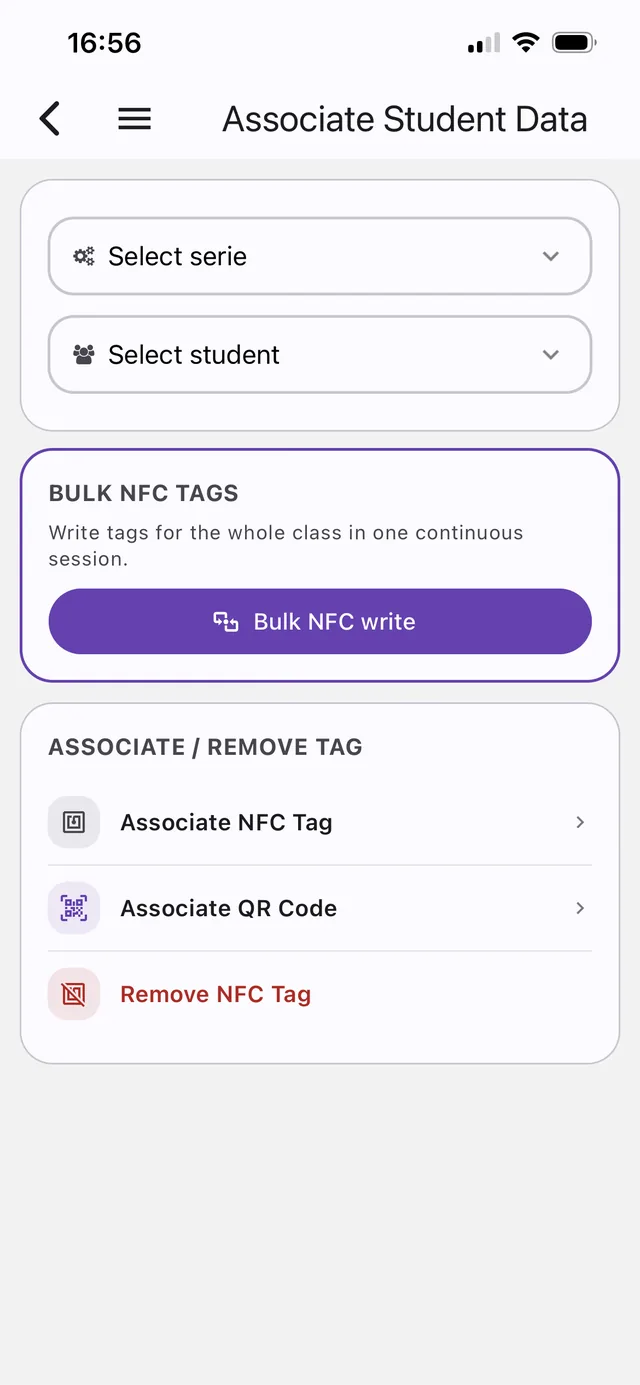
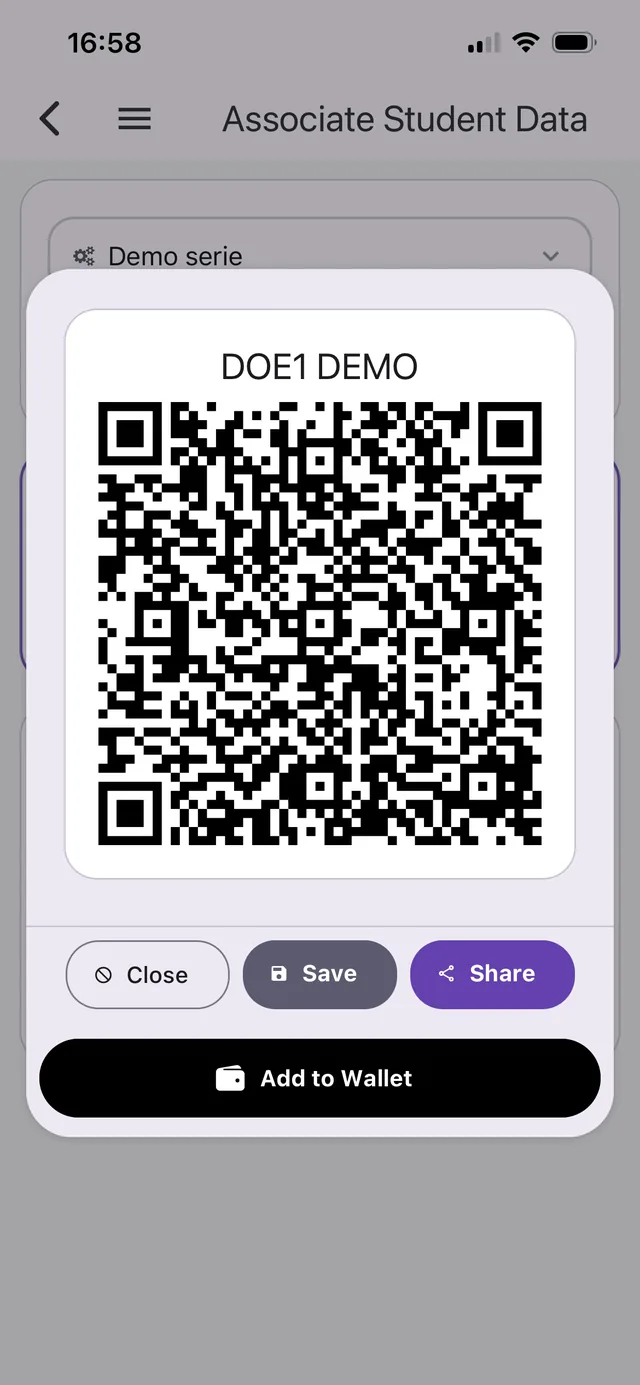
Generate a QR code or write an NFC tag for every student at enrollment, then link it to their profile for accurate tracking all year.
Save to your wallet
Every student pass can be saved straight to Apple Wallet or Google Wallet, so their QR code is one tap away with no app required to show it.
Cloud sync
Recorded attendances sync securely to the cloud, so your records stay backed up and accessible from any device.
Reports & insights
Review total attendances at a glance, drill into individual student history, or export a downloadable catalog for record-keeping.
Access, tightly scoped
Role-based access control follows the principle of least privilege, so student data stays visible only to authorised users.
Calendar & scheduling
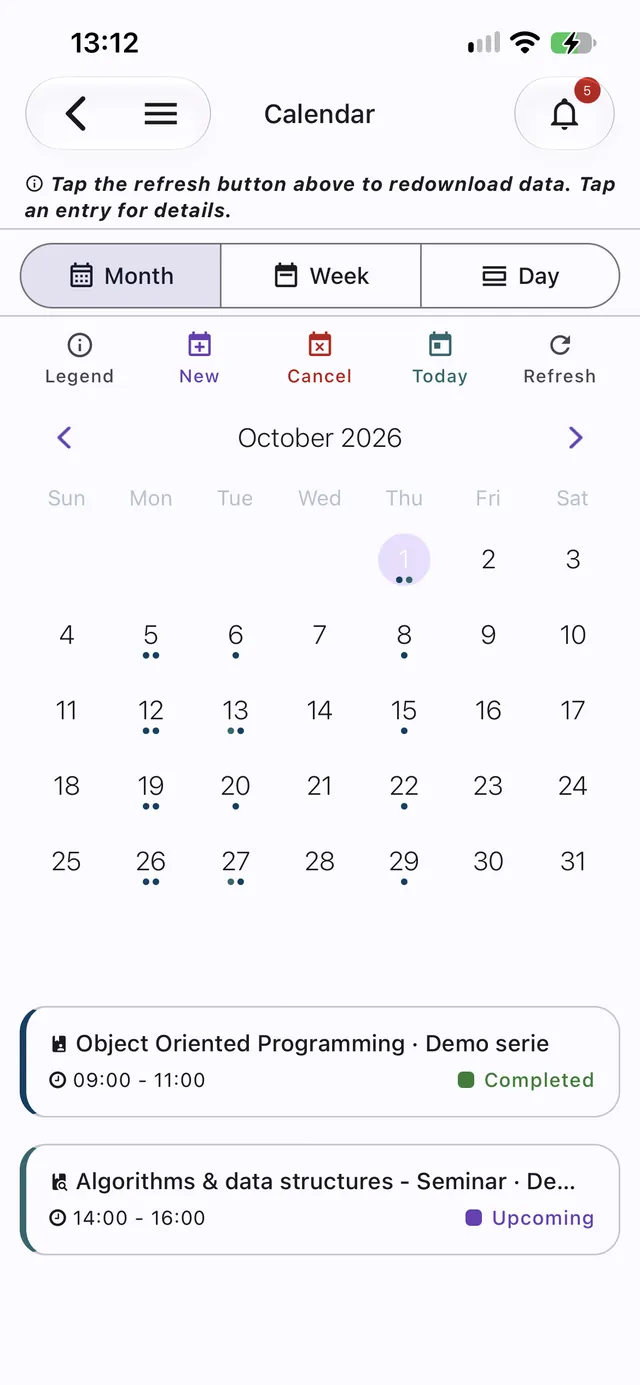
Set up recurring sessions once, then follow them in a month, week, or day calendar. Start the next one in a single tap, and cancel a single date or a whole holiday week.
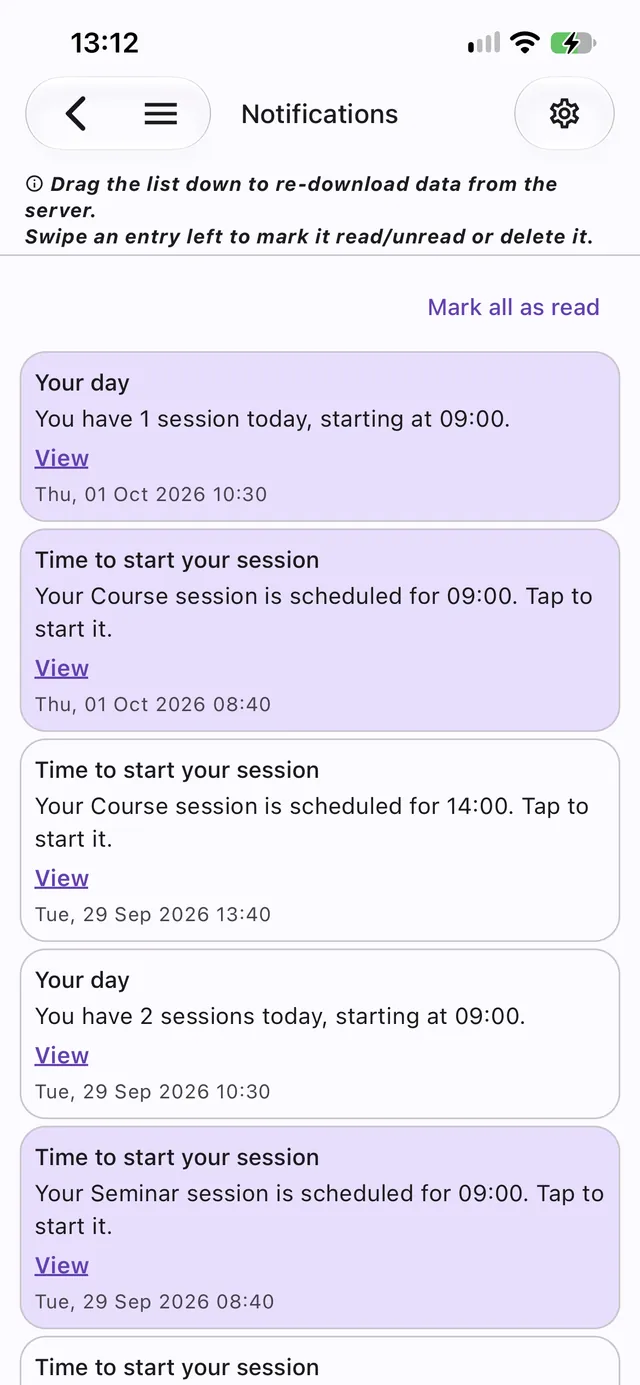
Notifications
Session reminders, a morning summary of your day, cancellations, and announcements land in an in-app inbox, and as phone or desktop notifications when you allow them.
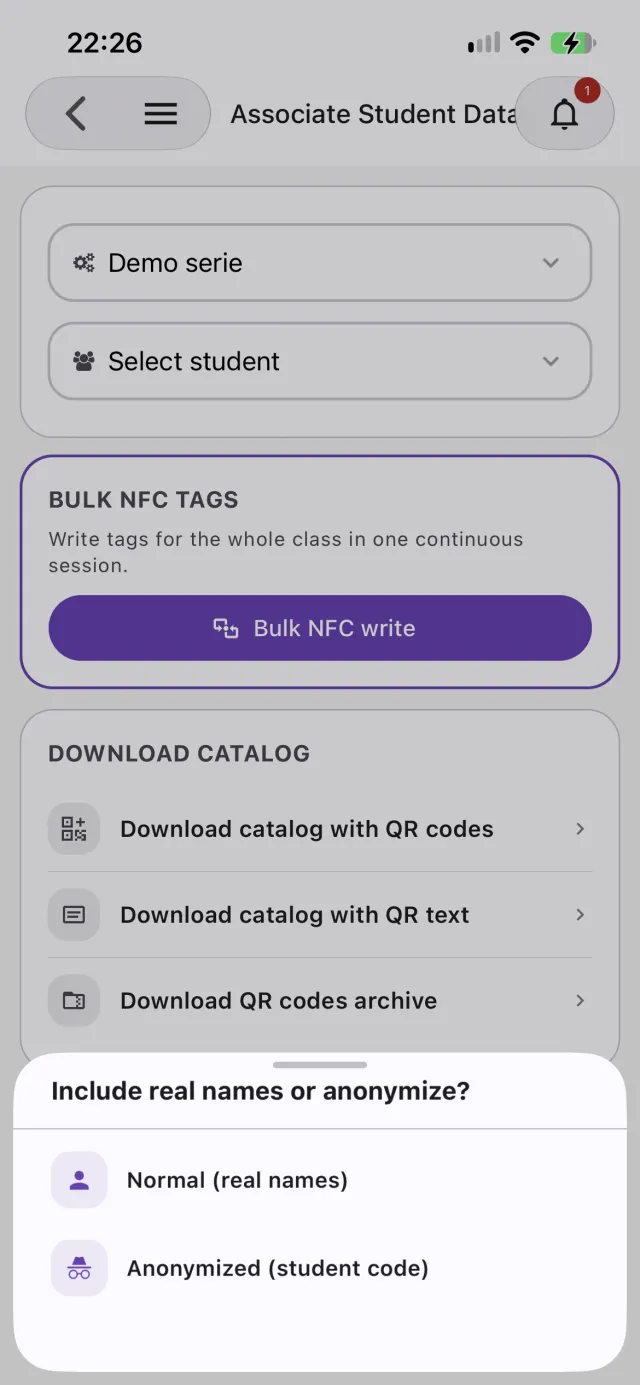
Data anonymization
Give students unique codes and export rosters and attendance with codes instead of names, to share data without exposing identities.
One app, every screen
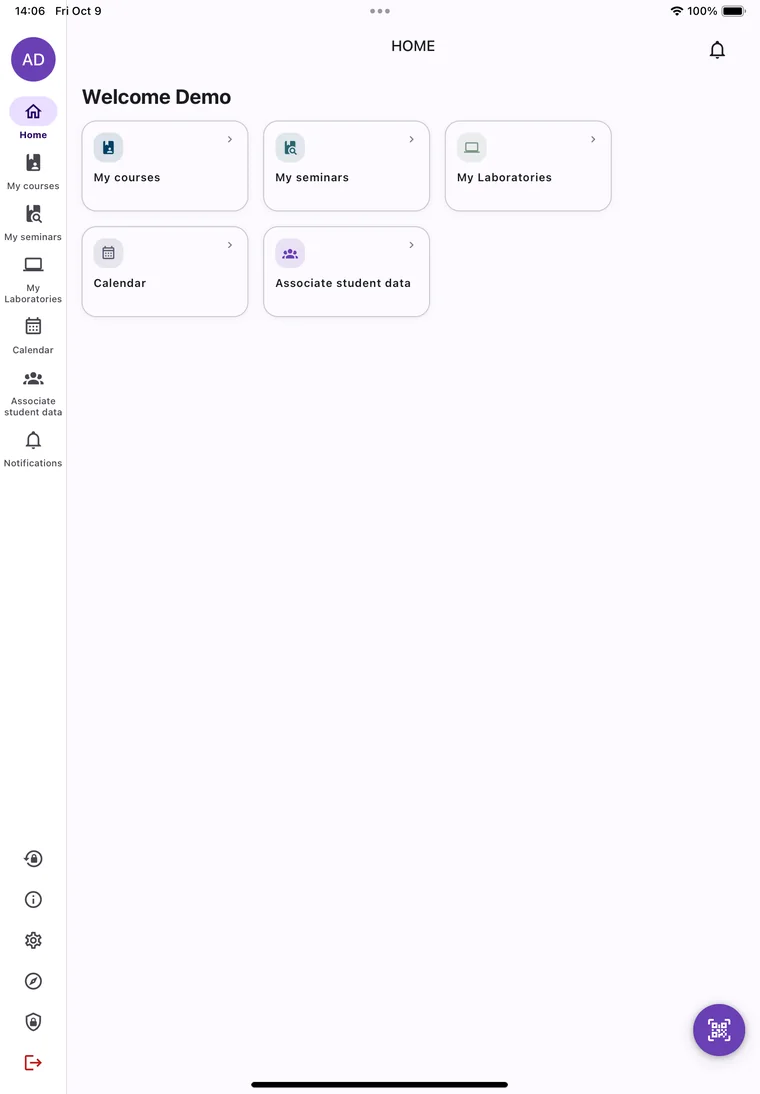
Phone, tablet, or desktop browser: on a tablet or in landscape you get a side menu and two-panel screens, so a course list sits next to its sessions and a class roster next to the session details and actions.
Apple Watch companion
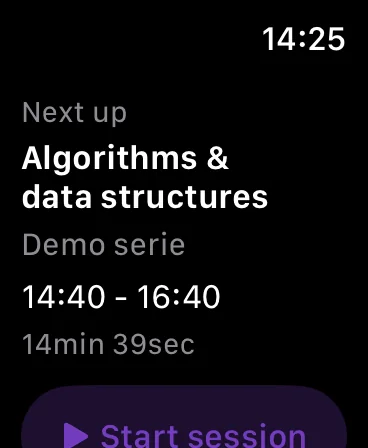
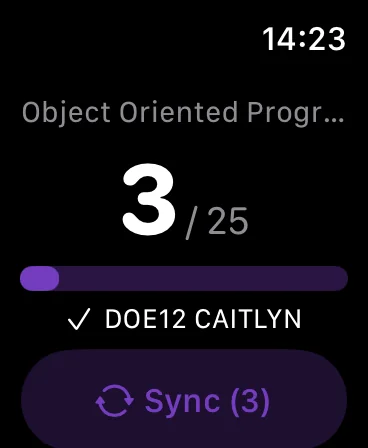
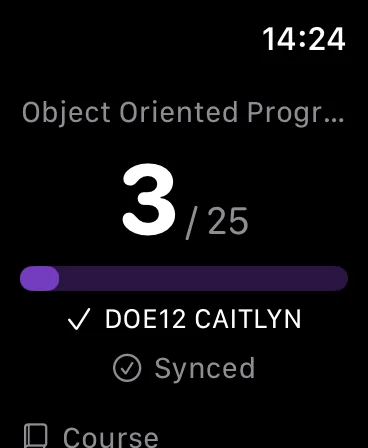
See your next session on your wrist, start it, follow the live attendance count while you scan, and sync without taking out your phone. Scanning itself still happens on your iPhone.
Attendance at a glance
See how many students attended each session, out of how many were expected, right in the sessions list and the calendar — and on your watch while you scan.
Made for every screen
The same account and the same data on your phone, your tablet, your desktop browser, and your wrist.
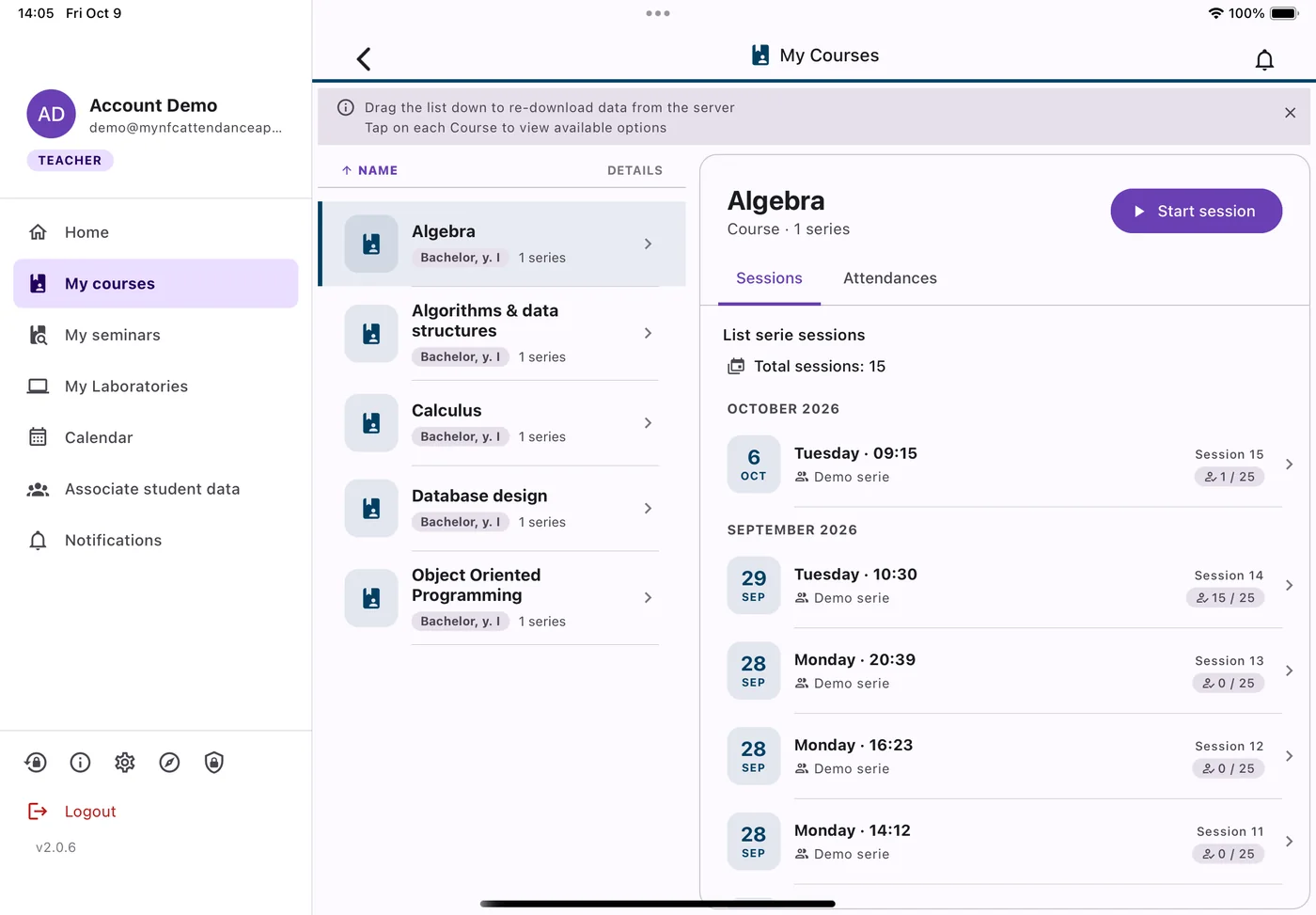
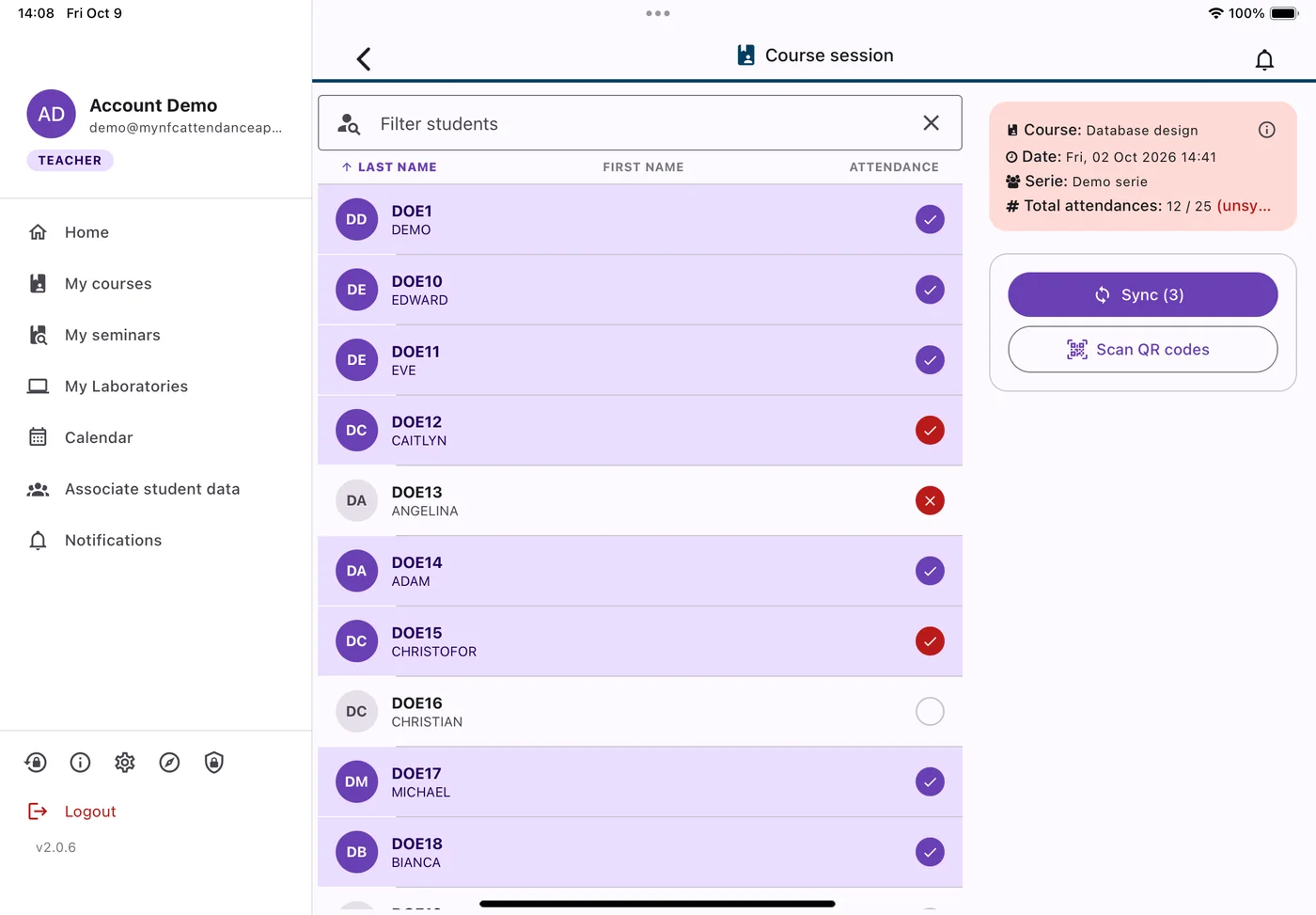
Tablet and desktop layout
On iPad, Android tablets, and wide browser windows, the app switches to a side menu and two-panel screens. Pick a course on the left and its sessions, attendances, and exam eligibility open on the right.
Apple Watch companion
Included with the iPhone app — no separate download. See your next session, start it, follow the live count as students check in, and sync from your wrist.
What works on which platform
My NFC Attendance ships as a native mobile app and as a browser-based web app on the same account and the same backend. Most capabilities match — a few depend on what the device and browser actually support, so here it is plainly rather than glossed over.
| Capability | Mobile app (iOS & Android) | Web app (browser) |
|---|---|---|
| NFC tap to mark attendance | Yes — iOS and Android | Android only, in Chrome or Edge — no browser exposes NFC to a website on iOS, Safari, Firefox, or desktop |
| QR code scanning | Yes | Yes, in any modern browser |
| Manual attendance marking | Yes | Yes |
| Bulk NFC tag writing for a class | Yes | Android only, in Chrome or Edge |
| Passwordless NFC tag login | Yes | Android only, in Chrome or Edge |
| Add pass to Apple Wallet | Yes — one tap, on iOS | Best-effort on iPhone Safari — opens a share sheet rather than a guaranteed one-tap install |
| Add pass to Google Wallet | Yes, on Android | Yes |
| Biometric app lock | Yes | Not applicable — browsers have no equivalent |
| Course, series & roster management | Yes | Yes |
| Excel import & catalog exports | Yes | Yes |
| Nothing to install | No — requires an app store install | Yes — open the URL in a browser; can also be installed as a Progressive Web App |
| Tablet and desktop layout | Yes — iPad and Android tablets get a side menu and two-panel screens, in portrait and landscape | Yes — the same layout in tablet and desktop browser windows |
| Apple Watch companion | Yes — included with the iPhone app (iOS only) | Not applicable |